Platform portal
Onboarding, organizations, campaign review, screen network health, reports and marketplace operations.
 Paneleon
Customer handout
Paneleon connects businesses with screens — such as gyms, hotels, cafés, shops and other venues — with local advertisers. Venues manage their own screen content and can monetize unused screen time. Advertisers choose relevant local venues, upload their creatives, and receive proof-of-play reporting.
Overview
Paneleon is a platform for adaptive digital screens. A venue can show its own content such as offers, class schedules, menu boards, hotel information, announcements or branded slides. The same venue can also decide whether it wants to accept local ads. Ads are not fake playlist items. They are inserted only when an approved campaign matches the venue, location, schedule and approval rules.
Guided first setup
New venue operators do not need to understand the internal Organization, Location, Screen, Media and Playlist structure. After the first login, Paneleon guides them through a simple flow and creates the technical objects automatically.
Enter company details and an optional logo. The organization is reused or created automatically behind the scenes.
Create the first physical venue with address, audience context and advertising preference.
Choose area, orientation and resolution. Paneleon generates the player token, slug and URL automatically.
Upload images or videos. Media assets, client, playlist, playlist items and screen assignment are created automatically.
Open the player URL, verify the connection and continue into the normal venue portal.
After onboarding, the full management pages for locations, screens, media and playlists remain available. The wizard simplifies the entry path without weakening the professional data model underneath.
Screen/device model
A location is no longer treated as one generic player. Paneleon now uses a stable device model: an organization owns locations, and each location can own multiple screens. Each screen has its own secure player token, player URL, resolution, orientation, optional assigned playlist, ad rules and health heartbeat.
The customer account, such as a franchise, hotel, venue owner or advertiser.
A physical venue, such as a lobby, gym, shop or waiting area.
A concrete TV, monitor, kiosk or player device with its own URL.
Content can be assigned directly to a screen or inherited from the location playlists. A direct screen playlist must be valid for the selected location.
This matters for professional customers: a reception screen can show different content than a gym-floor screen. Online/offline status, current playback and future proof-of-play records can also be tracked per screen.
A new display no longer needs a long player token typed manually. The display opens /connect and shows a short-lived code such as ABCD-7291. In the venue portal, that code is entered for the intended screen. The device then stays paired to that screen and opens the player automatically. Pairing codes expire after ten minutes and can only be claimed once.
For normal venue users, the physical screen is the main object: “What should this screen show?”. The screen detail page shows health, resolution, device connection and current content. Images or videos can be added directly, reordered, given a new duration or removed. Media assets and playlists remain underneath. If a screen currently uses inherited or shared content, Paneleon creates a private copy before individual changes so another display is not modified accidentally.
Role-specific portals
After login, every user sees a portal tailored to their role. Platform users operate the marketplace, venue users manage locations, screens and approvals, and advertisers focus on campaigns, available venues and reports.
Onboarding, organizations, campaign review, screen network health, reports and marketplace operations.
Locations, screens, playlists, player status, placement approvals and venue revenue share.
Available locations, campaign wizard, creative upload, campaign status and proof-of-play.
Venue perspective
The venue fills out the public application form with company details, address, number of locations, number of screens, customer audience and advertising interests. Examples: fitness, health, food, local services, retail or events.
The platform team checks whether the venue fits the network. After approval, the application can be converted into an organization, user account, first location profile and default settings.
The admin area stores company name, address, logo, contact person, billing data, timezone, venue type and estimated audience. Each location can separately define if it accepts ads.
Venues can upload images, videos and document files. Recommended content format is 16:9, ideally 1920×1080. Portrait assets are handled safely by the player, but proper landscape slides look best.
A playlist is the normal screen loop. It can be assigned globally, to one organization, or to specific locations. Examples: reception loop, gym-floor loop, lobby loop, checkout area or waiting room.
When an advertiser selects a venue, a placement request is created. The venue can approve or reject it, so the venue keeps control over what is shown on its screens.
The player runs in a browser on a TV, monitor or kiosk. For the MVP, one location can run the same loop on multiple screens. A dedicated screen model can be added later.
The venue can see confirmed plays, active campaigns, player status and the expected venue revenue share.
Advertiser perspective
The advertiser submits company details, contact person, business category, campaign goal, target area and budget range. Examples: supplement shop, physiotherapy, barber shop, restaurant or local event.
After approval, the advertiser receives an account. The advertiser organization contains contact data, campaign data, creatives and reporting.
The advertiser can review locations by venue type, city, audience and advertising interests. This makes it easy to decide whether a campaign should run in gyms, hotels, shops or other venues.
The campaign wizard guides the advertiser through campaign name, date range, budget, creative upload and location selection. The campaign is then submitted for approval.
Images and videos are supported. The best format is 1920×1080 landscape with a clear message, little text and strong contrast, because people read screen content from a distance.
A campaign only runs after it has been approved and the selected venue has accepted the placement request.
The player checks whether the campaign matches the current location, time window and approval state. If it matches, the ad is inserted between normal content items.
The advertiser sees confirmed plays, selected locations, campaign status and recent playback. At this stage, the platform reports confirmed plays, not guaranteed individual views.
Marketplace logic
Paneleon separates normal content from ad campaigns. A location can define, for example, that after four normal playlist items the player may check for an ad. If no suitable campaign is active, the player simply continues the normal playlist. If a campaign matches, it is shown and logged.
The player shows the venue’s standard playlist.
After the configured frequency, the player asks whether a matching ad is available.
Category, location, time window, campaign status and venue approval are checked.
Only approved campaigns are shown and recorded as proof-of-play.
Reporting
Venues see which campaigns are running at their locations, how many confirmed plays were logged, whether the player is healthy, and what venue revenue share is expected.
Advertisers see campaign status, selected locations, confirmed plays, first and last playback, and budget information. This creates a transparent proof for booked local visibility.
The revenue split is simple: the advertiser pays for the campaign, Paneleon keeps the platform share, and the venue receives the venue share. For the MVP, the split can be distributed equally or by confirmed plays.
Demo screenshots
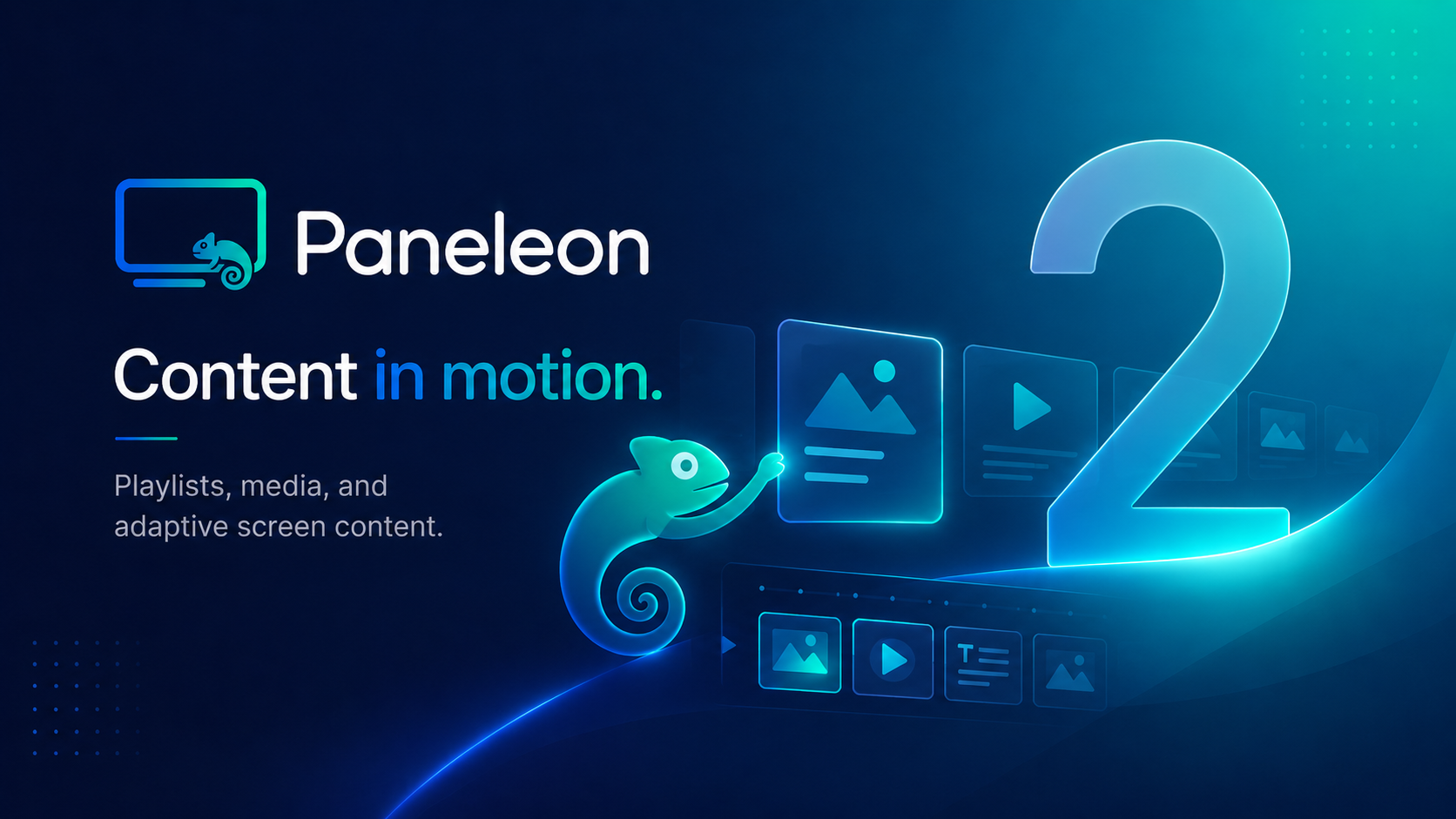
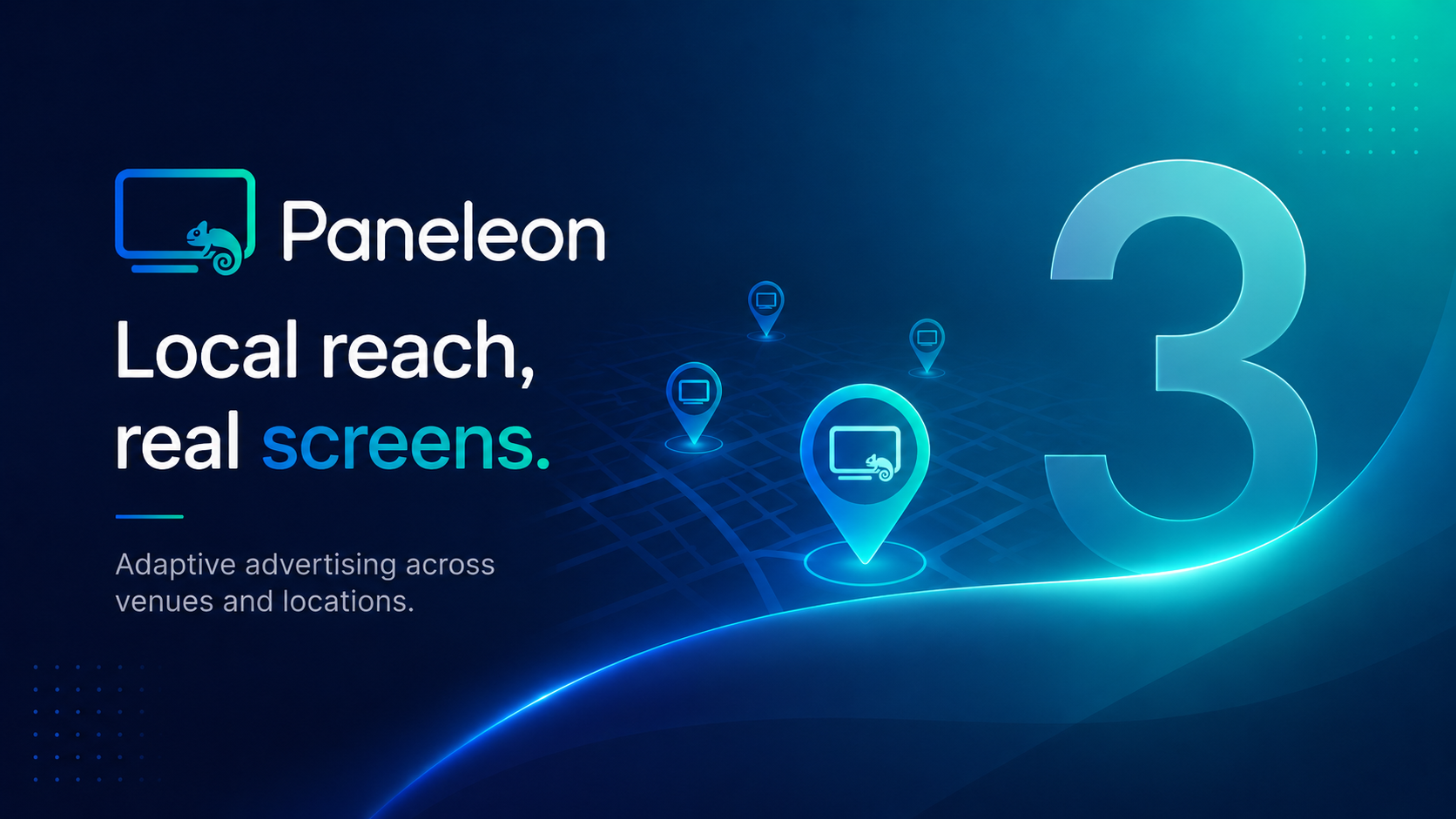
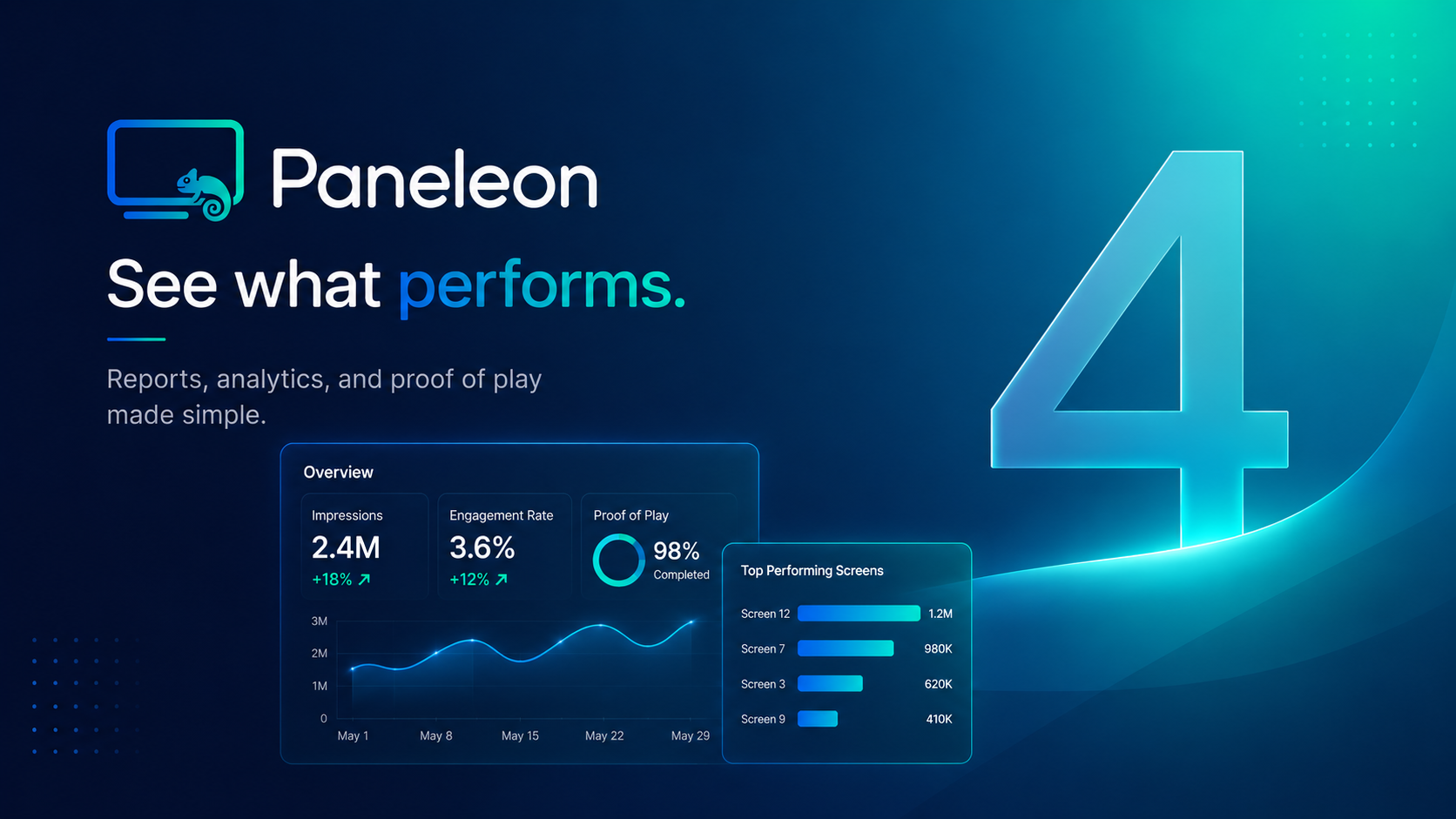
The following five 16:9 slides are bundled as a public demo playlist in the system. They show how a polished branded screen loop can look on a real display.
FAQ
Not for the MVP. A location can run the same player and the same loop on multiple screens. Later, a dedicated screen model with individual tokens can be added.
Yes. Placements must be approved by the venue. Venues also maintain their audience and advertising interests.
Proof-of-play is the technical confirmation that a creative was played by the player. It is not the same as a guaranteed view count.
The normal playlist continues. There are no artificial or fake ad slots.